 Awareness Paradigm
Student guide
Watch your lectures, open worksheets and keep track of your progress, all from your phone.
In the pictures, the pink ring shows what to tap.
Getting started
- 1
Sign in
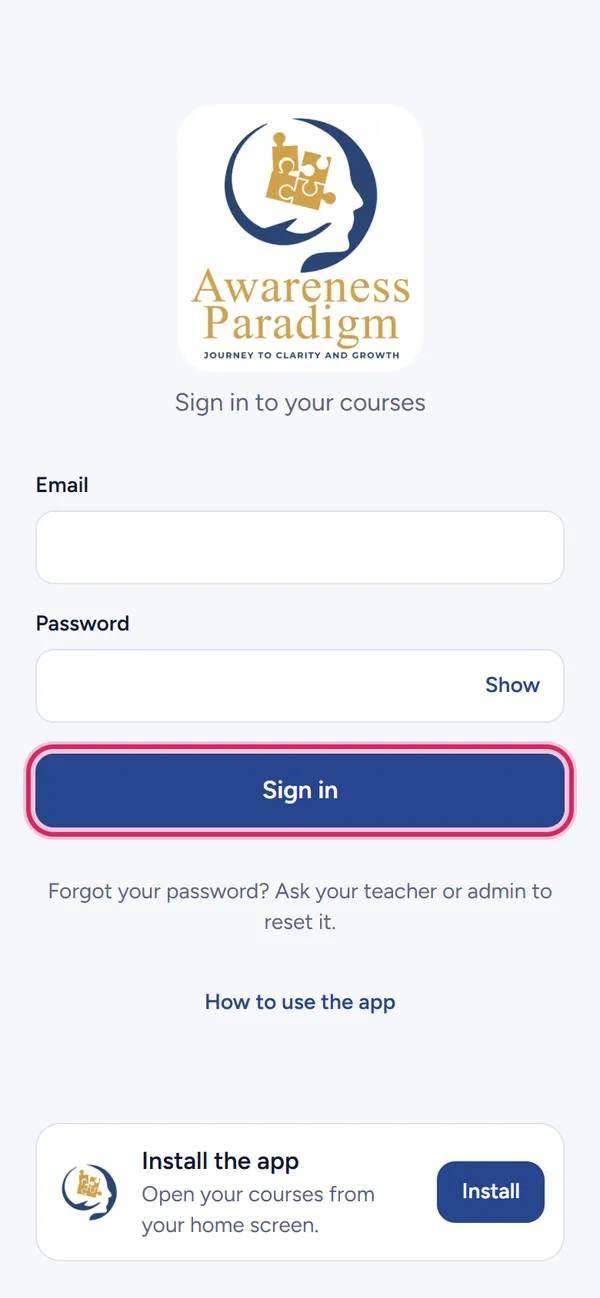
Open the link your teacher sent you.
Type your email and password, then tap Sign in. You stay signed in on this phone.
- 2
Put the app on your home screen
iPhone: tap the Share button in Safari, then Add to Home Screen.
Android: tap Install when the app offers it (or the ⋮ menu, then Install app).
From now on, open it from the Awareness icon like any other app.
- 3
Your home screen
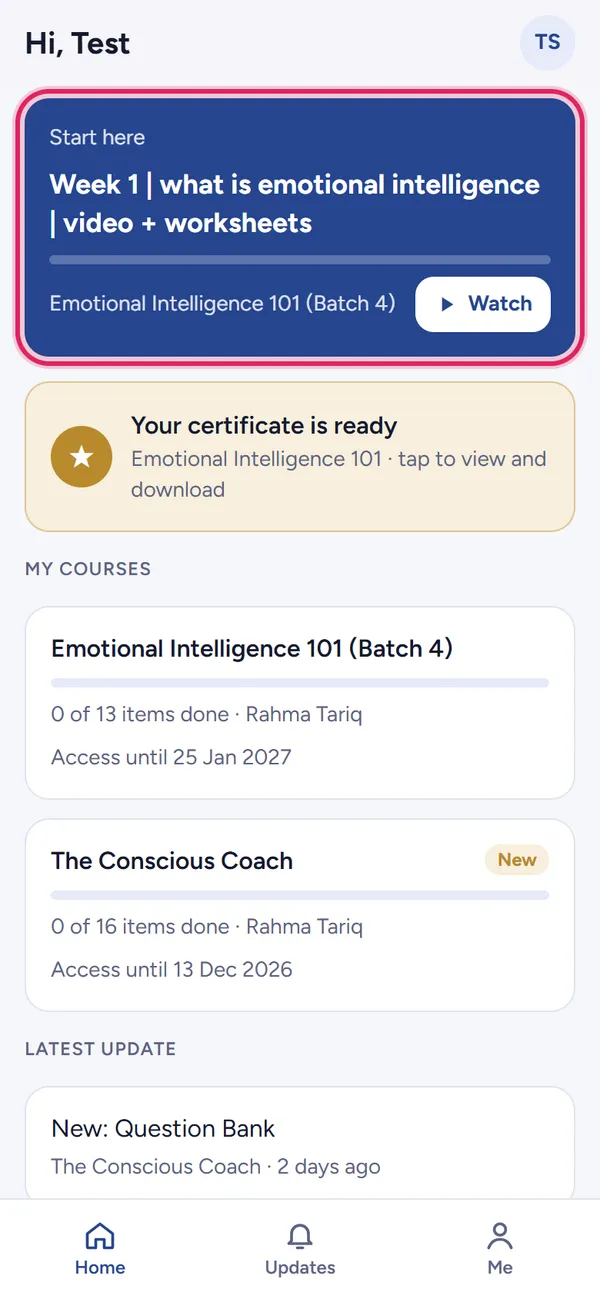
The blue card opens the next lecture you haven't finished. Tap Watch.
Below it are your courses and how far you are in each. New means something was added recently.
Your course
- 4
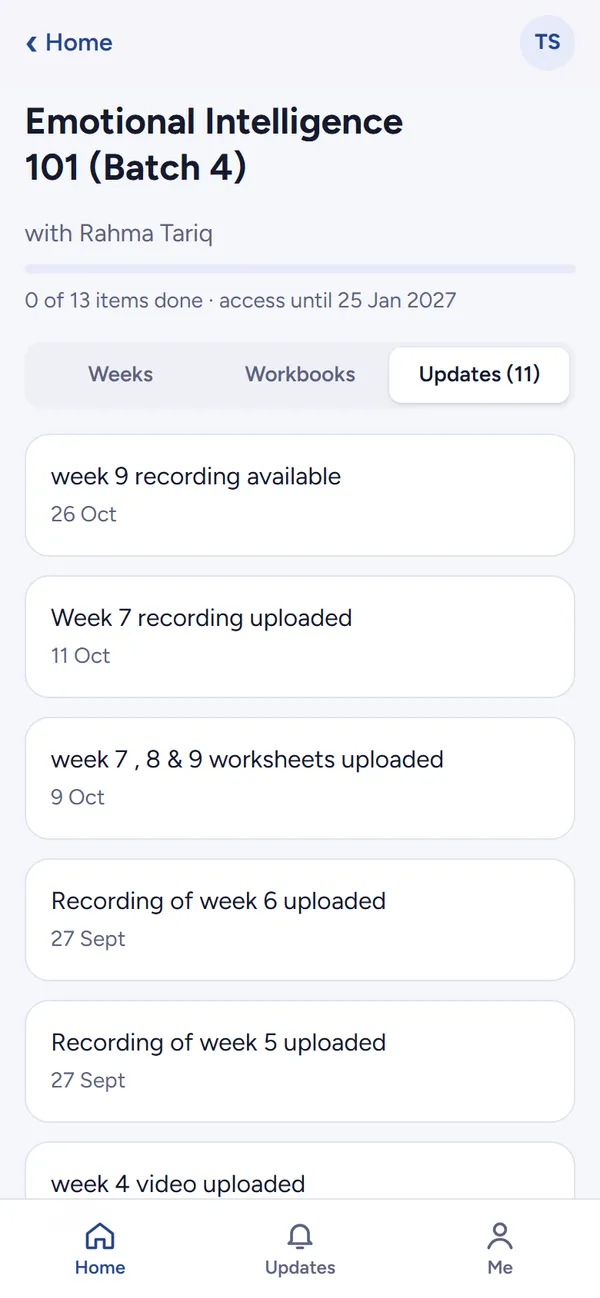
Weeks
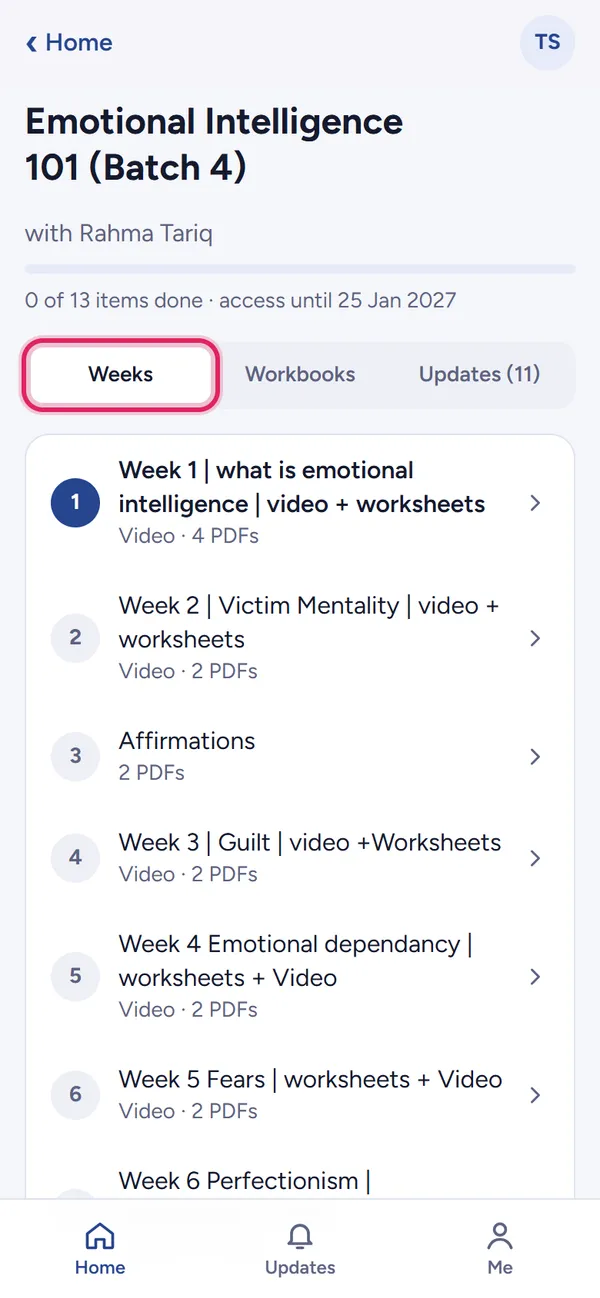
Tap a course to see every week in order. A green tick means you marked it done.
- 5
Workbooks
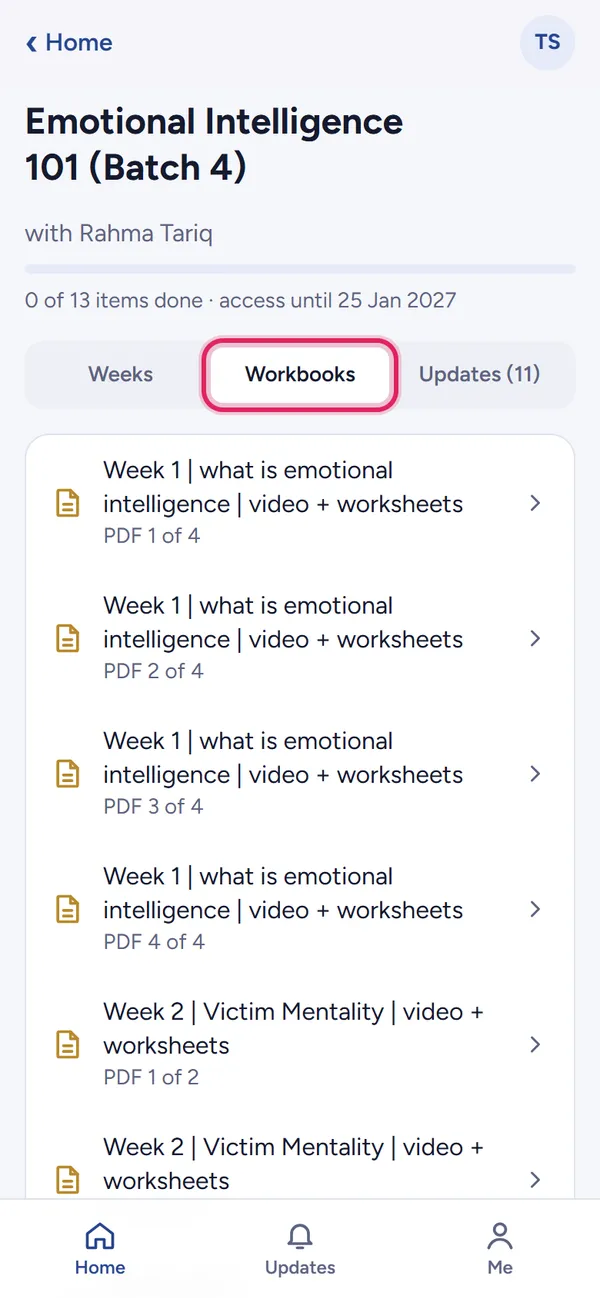
All worksheets and PDFs of the course in one list.
- 6
Updates
Messages from your teacher for this course.
Watching a lecture
- 7
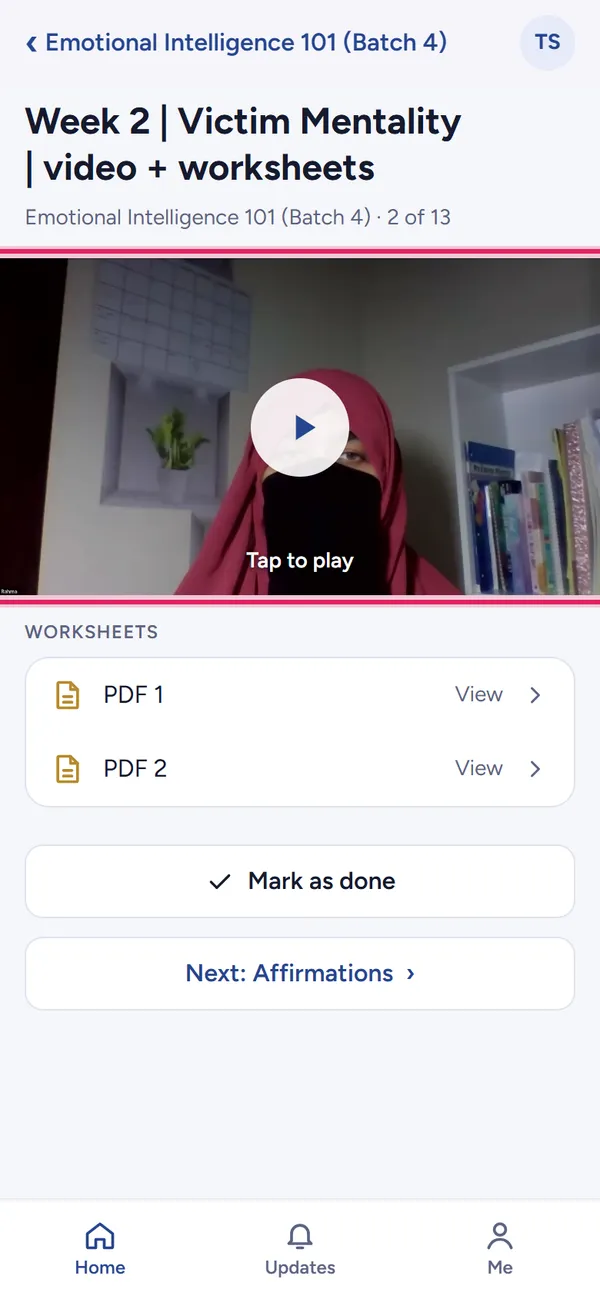
Tap to play
Open a week, then tap the big play button. The video opens full screen.
Some weeks have more than one video: tap Part 1, Part 2… above the player to switch.
- 8
While it plays
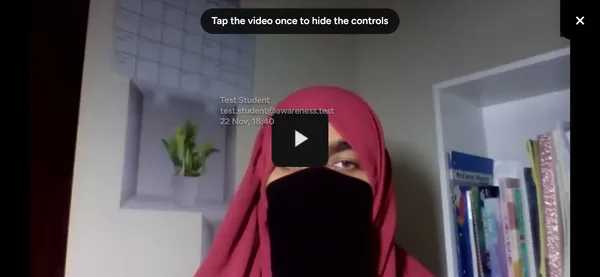
Use the player's buttons to pause or jump back and forward 10 seconds.
Tap × in the top-right corner to close the video.
Your name and email appear on the video. Please don't record or share lectures.

- 9
Turning your phone sideways
For a bigger picture, turn the phone sideways. If the screen looks dark, tap the video once and the buttons will hide.
Worksheets and progress
- 10
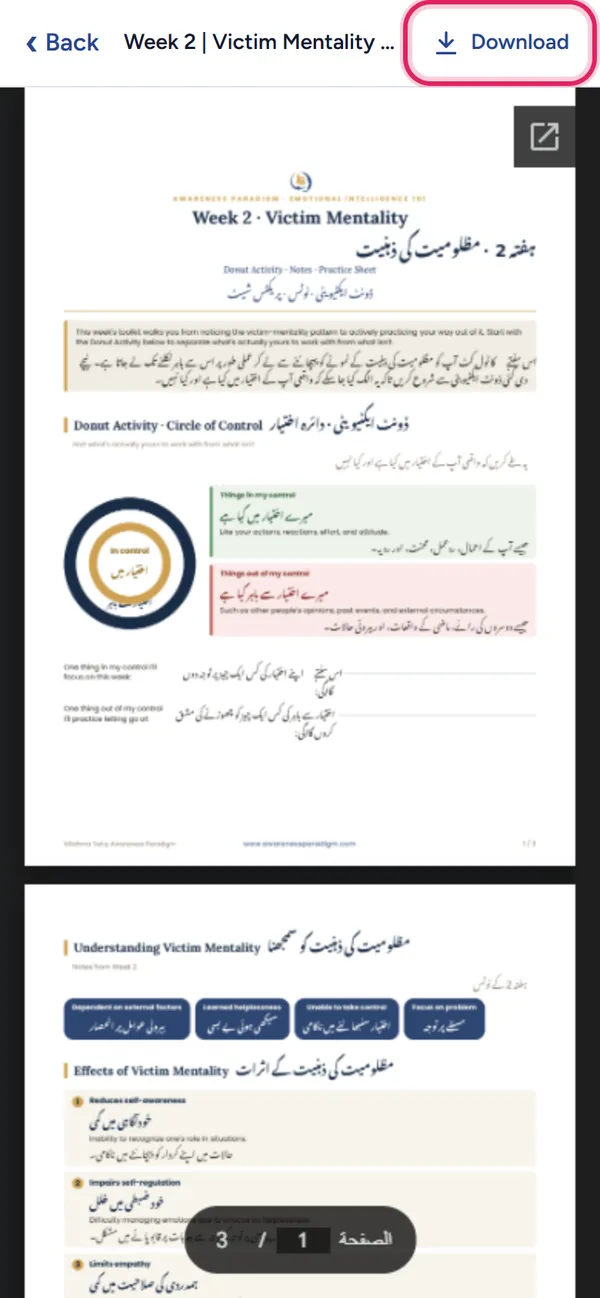
Open or download a worksheet
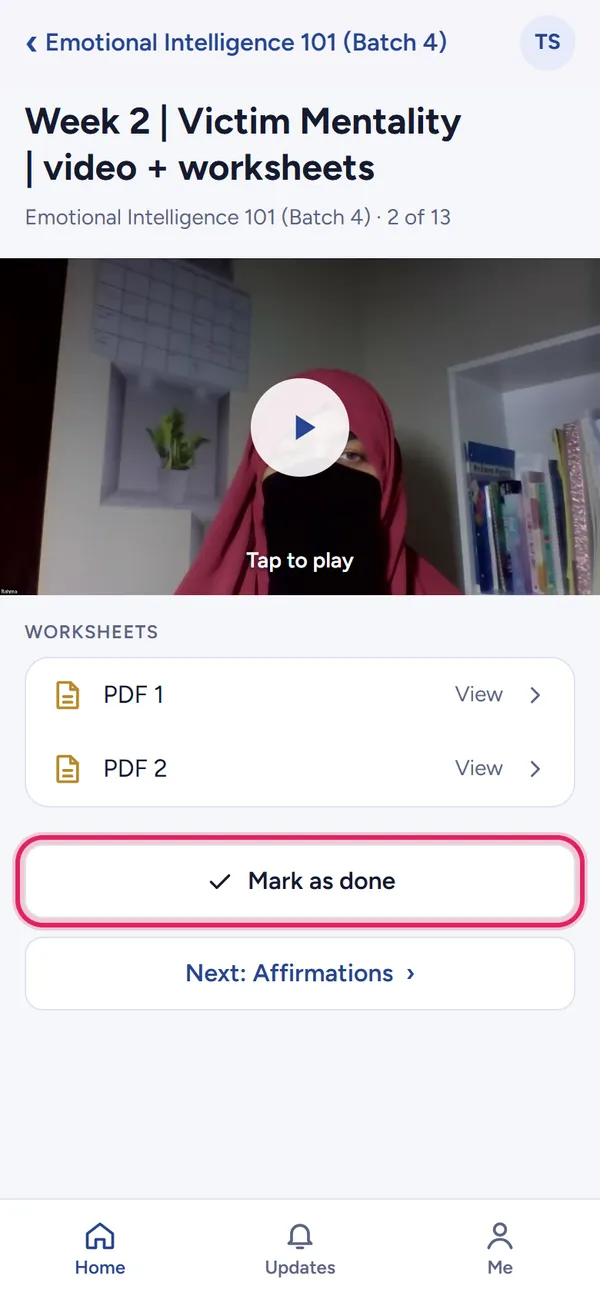
Under the video, tap PDF 1, PDF 2 and so on. Tap Download to save it on your phone.
- 11
Mark as done
When you finish a week, tap Mark as done. Then tap Next to go to the next week.
- 12
Your certificate
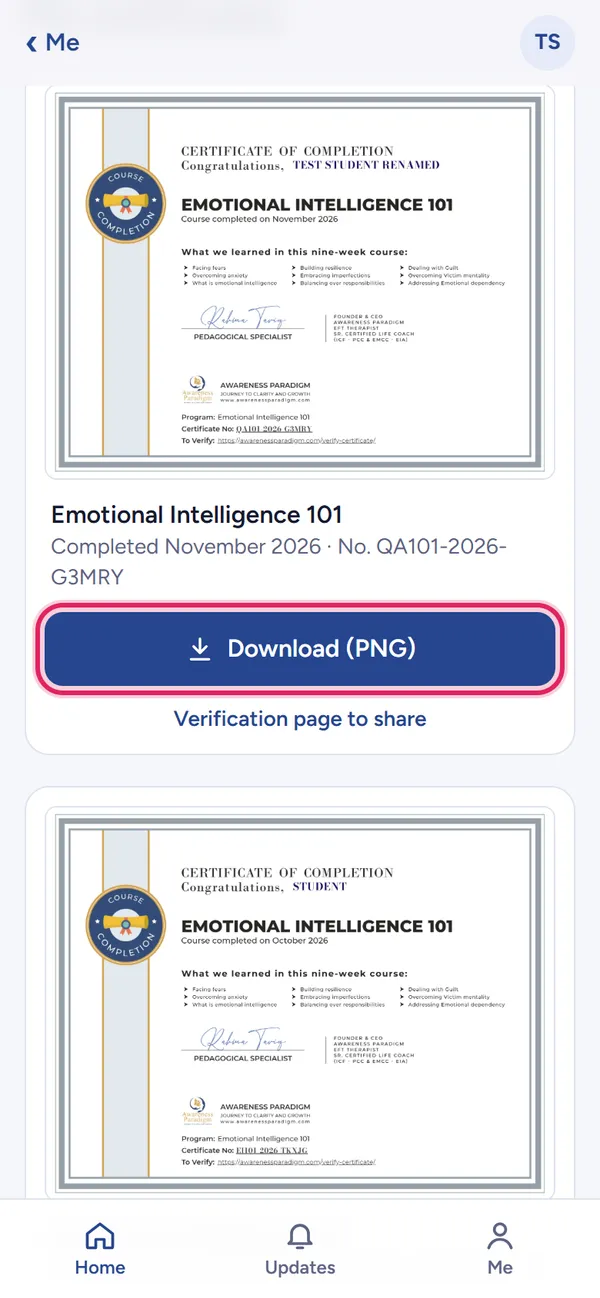
When your teacher issues certificates, a gold card appears on your home screen. Tap it (or Me → My certificates).
Tap Download (PNG) to save it. The certificate number on it can be checked by anyone at the verification page.
- 13
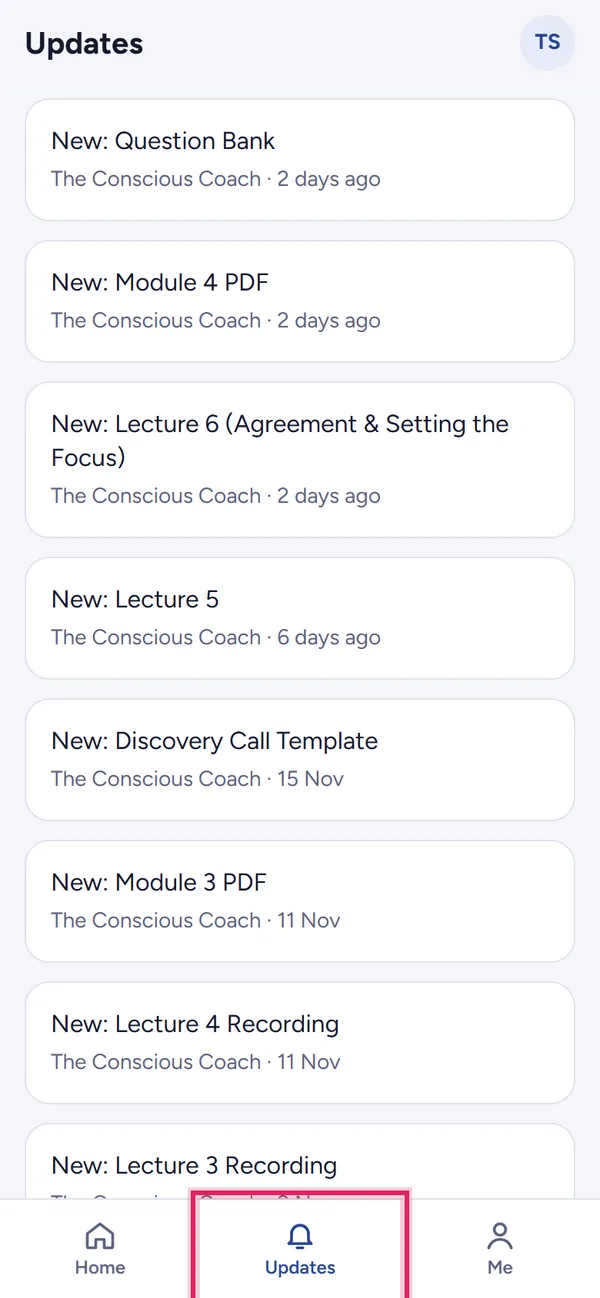
All updates
The Updates tab at the bottom shows messages from all your courses.
- 14
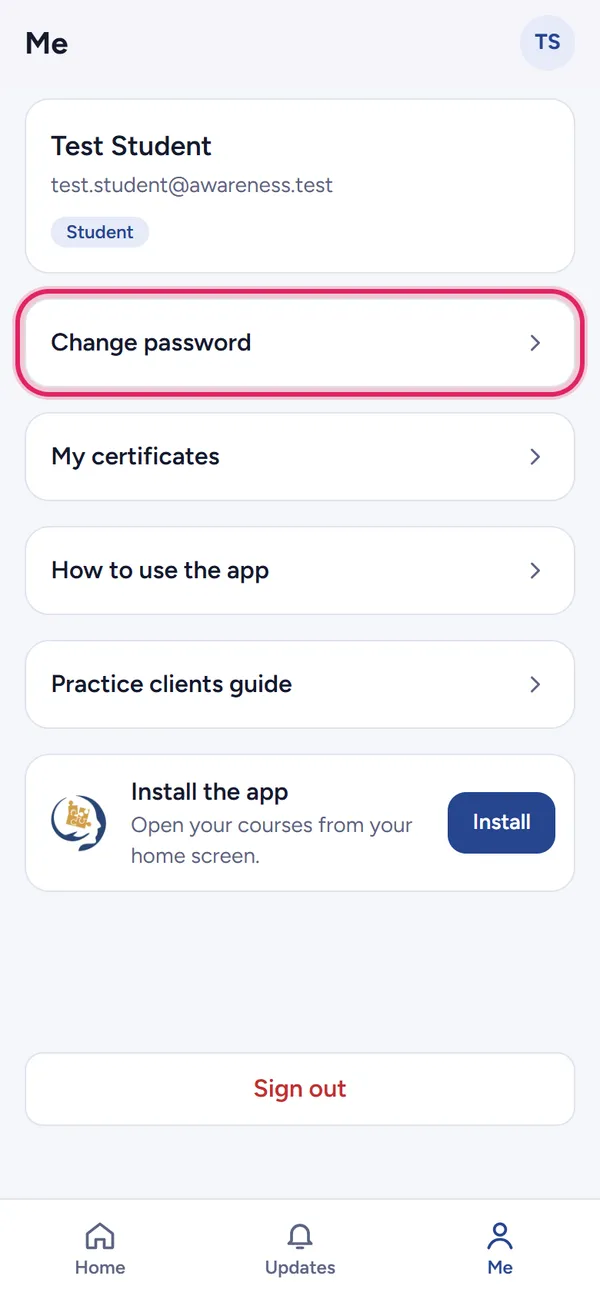
Change your password
Tap Me at the bottom, then Change password. Enter your current password once and the new one twice.
Quick help
- Forgot your password? Ask your teacher. They'll send you a new one.
- Each course card shows “Access until …” if your access has an end date. After that date the course disappears; contact your teacher if you need more time.
- Videos need internet. Wi-Fi is best for long lectures.